
AI




Your estimates just got more flexible. Here's everything we shipped this month.
The March 2026 release focuses on removing workflow blockers that many of you have told us about — and giving you more control over how you set up and manage your projects in Drawer AI. From circuit grouping to device detection, every update in this release is designed to match how electrical contractors actually work in the field.
Let's walk through what's changed.
What changed: We removed the restriction that prevented lighting and power devices from being assigned to the same panel and circuit during Circuit Grouping.
Why it matters:
When we first built Circuit Grouping and Branch Routing, we designed them around the assumption that power and lighting devices would always live on separate panels. That meant if you tried to assign both types to the same panel and circuit, you'd hit an "Operation failed" error — with no way to move forward.
As it turns out, many contractors use a single panel for both lighting and power devices. But in Drawer AI, this restriction was preventing them from completing the workflow in our system.
We've now removed that validation at the project level. Lighting and power devices can be freely grouped on the same panel and circuit, and Circuit Grouping and Branch Routing will process them without issues.
What to expect: If you were previously blocked by this error, your projects should now process as expected. No action needed on your end — just run Circuit Grouping as usual.
What changed: The Item Class dropdown now shows all available classes in a single list — across Power, Lighting, and Low Voltage device categories.
Why it matters:
Previously, each device type had its own locked set of Item Classes. For example, Lighting devices had Item Classes like Lighting Control and Lighting Fixture — and couldn't be changed to a class outside of their original device category. The same applied to Power and Low Voltage devices. This became a problem when users needed to group Power and Lighting devices on the same circuit.
Now, when you select a device and open the Item Class dropdown in the Properties Panel, you'll see every available class regardless of the original device category. This gives you the flexibility to reclassify devices as needed for your specific project setup.
A note on tag linking: Changing an Item Class can affect your linked tags. Here's what to expect:
Switching between Power and Lighting classes: Panel and circuit tag links stay in place. Feature, item type, and mounting height tags will be automatically removed.Switching to a Low Voltage class: All tag links will be removed.You'll see a permanent hint under the Item Class dropdown — "Changes could affect tag linking" — as a reminder before making changes.
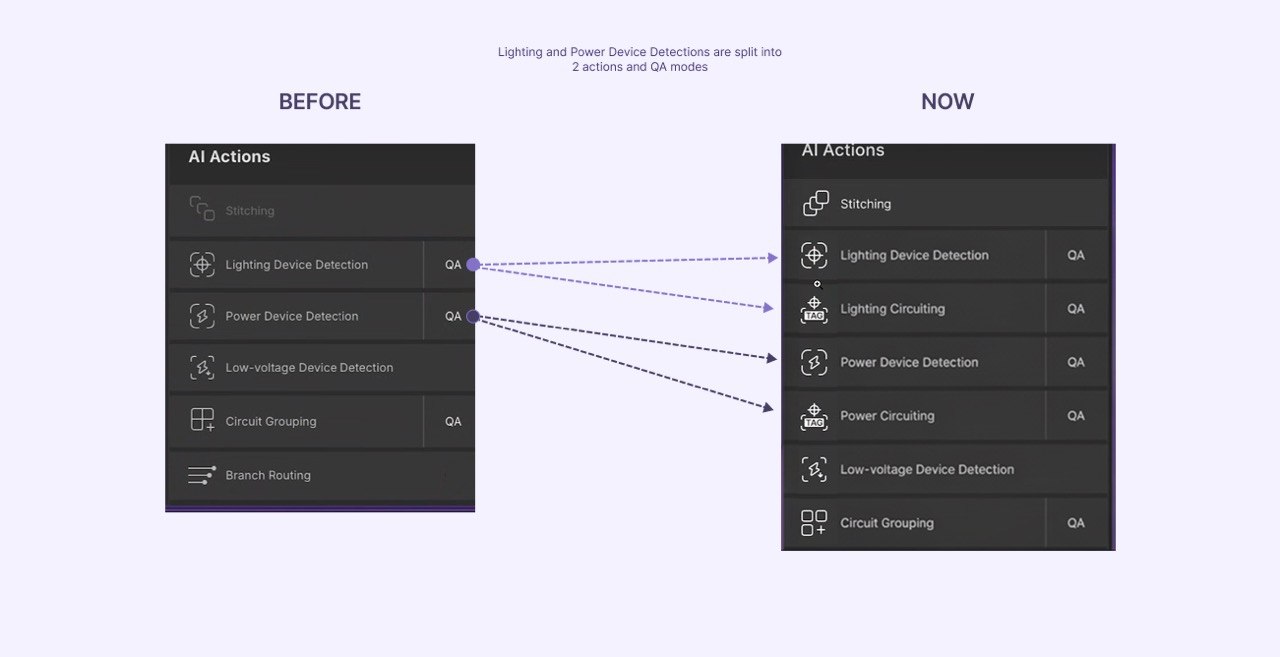
What changed: Lighting Device Detection and Power Device Detection have each been split into two separate steps, each with its own dedicated QA mode.
Why it matters:
Previously, device detection and panel circuit linking happened together. We've now split this into two separate steps so you can review devices before running circuit linking.
We've redesigned this into a two-step workflow:
Step 1 — Detect Devices Detect and review electrical devices on the drawing.
Step 2 — Panel Circuit Linking Detect panel circuit tags and link them to devices.
For best results, review devices before running circuit linking.
What to expect: The AI Actions panel now shows separate buttons for each step — Lighting Device Detection, Lighting Circuiting, Power Device Detection, and Power Circuiting — instead of the previous combined actions.
What changed: You can now delete panels directly from the Panel Editor.
Why it matters:
Deleting a panel is a basic and expected function that gives you full control over the project setup. Previously, there was no way to remove a panel once it was created.
Now, you can delete a panel from the Panel Editor and reassign devices from the deleted panel to another existing one.
What to expect: Look for the delete option in the Panel Editor.
What changed: We've updated warning indicators across Circuit Grouping and Branch Routing with clearer messaging and consistent placement across all AI Actions — in both PDF Viewer and Project Viewer.
What to expect: When your data needs attention — for example, if changes were made after running an action — you'll see a specific message telling you what to do next, like rerunning Circuit Grouping before proceeding to Branch Routing.
This release is all about removing friction. Whether it's a validation that was blocking your circuit grouping, a device detection flow that needed more control, or a missing delete button in the Panel Editor — we want Drawer AI to work the way you work.
As always, if you have questions about any of these updates, contact us at /contact-us. We'd love to hear how these changes are working for you.

14425 Falcon Head Blvd
Building E, Suite 100,
Austin, TX 78738
Created by Estimators, Powered by AI and Innovation
Copyright © 2026 Drawer AI. All rights reserved.