AI





Most PDF electrical takeoff errors do not happen because an estimator cannot read drawings. They usually come from a smaller set of repeatable PDF-specific failure modes. The drawings may be valid, yet the information is split across sheets, schedules, risers, details, and revisions while the bid clock keeps moving.
Table of Contents
Consider a multi-building commercial project. The site plan may show an approximate meter-center location, while the exact location is elsewhere. A service route may be diagrammatic, but conductor quantity and size live on a riser. Panel information may sit in a separate schedule. One missed reference can turn a correct set into missed scope.
Those are the recurring causes of electrical takeoff errors this guide is built around. They show up as common electrical takeoff mistakes: duplicate devices at sheet seams, scale drift, symbol misclassification, hidden references, revision confusion, and long click-counting sessions.
The article names 12 causes and gives one prevention check for each. Each check fits into an estimating workflow in 5-10 minutes. It separates the causes a disciplined process can solve from those it can only reduce. Several failures are structural to manual click-counting, so the final sections show where automation changes the workflow and where estimator judgment still matters.
Most electrical PDF takeoff errors come from a small set of recurring causes, not from inexperience: devices double-counted at match lines, similar symbols misclassified, click-counting fatigue on dense sheets, scope hidden on referenced schedules, revision drift, and low-quality scanned PDFs. Several are structural to manual click-counting and are only removed when the counting step is automated.
The table below groups these common electrical takeoff mistakes by drawing, workflow, or tool risk. It shows whether the prevention check solves the cause, reduces it, or is limited by the input.
|
# |
Cause |
Bucket |
Prevention-check effectiveness |
|
1 |
PDF rendering inconsistency across viewers |
Drawing / tool |
Solves (discipline) |
|
2 |
Match line stitching errors at sheet boundaries |
Workflow |
Reduces (AI addresses seam) |
|
3 |
Scale / calibration drift between sheets |
Workflow |
Solves |
|
4 |
Symbol legend variance between sets |
Drawing |
Solves (project legend) |
|
5 |
Misclassification of similar fixtures / devices |
Workflow |
Reduces (AI reduces) |
|
6 |
Click-counting fatigue on high-density sheets |
Workflow |
Reduces (AI addresses cause) |
|
7 |
Hidden scope on referenced separate sheets |
Workflow |
Solves |
|
8 |
Hand-marked annotations and RFI markups |
Drawing |
Solves (discipline) |
|
9 |
Revision handling without delta tracking |
Workflow |
Reduces (manual log) |
|
10 |
Multi-discipline overlay confusion |
Drawing |
Limited by input |
|
11 |
Inconsistent panel-to-device association |
Workflow |
Solves |
|
12 |
Drawing quality variance: scanned / low-DPI PDFs |
Drawing |
Limited by input |
Commercial estimators rarely receive one perfectly uniform PDF package. A bid set can mix Revit exports, flattened coordination sheets, scanned legacy details, hand-marked revisions, and design-build sketches. All of those files enter the same takeoff workflow, even though they do not carry the same visual quality or structure.
The frustrating part is how predictable the failures are. One estimator misses a device because a keynote sends the scope to another sheet. Another counts the device correctly but assigns it to the wrong panel. A third measures conduit with a calibration that belonged to the previous page. The mistakes look unrelated, but they happen at repeatable points.
A useful way to think about PDF takeoff errors is to sort them into three buckets. Drawing-level causes live in the PDF itself. Workflow-level causes come from how the takeoff is performed. Tool-level causes come from what the software displays, automates, or fails to catch. Naming the pattern gives a shop something concrete to train and audit. It is much more effective than hoping one last page flip catches everything before bid time.
That naming also makes QA transferable between estimators. A reviewer can flag a specific failure mode instead of saying only that a page looks off.
The same PDF can look different in Bluebeam, Adobe Acrobat, and a takeoff tool's built-in viewer. Layers, transparency, line weights, and vector elements may render differently. On a dense electrical sheet, a small display change can hide a note, symbol, or line segment.
Why it happens: PDF viewers use different rendering engines and layer rules. A device that is visible in one viewer can be suppressed or softened in another. That makes this a drawing-and-tool problem, not an estimator-skill problem.
Prevention check: do the entire takeoff in one primary viewer. At kickoff, open three representative sheets in that viewer and one reference viewer. Confirm that linework, layers, symbols, and annotations match. If they do not, work from a controlled flattened copy or request a corrected file. AI does not solve a bad render; the input still has to be readable.
This spot-check is most useful on sheets with dense linework, transparency, and imported CAD content. It also gives the team a known-good reference if someone later reports that a symbol disappeared or a layer changed.
Keep that reference copy with the bid file.
Match line stitching errors happen where a continuous floor is split into separate PDF pages. A receptacle, fixture, or circuit near the seam may appear on both sheets, only partly on one sheet, or continue through a reference that forces a page change.
Why it happens: the PDF treats each sheet as a separate page, but the building does not. Nothing in a manual takeoff enforces which side owns a boundary device. That creates duplicate counts, missed items, and broken circuit continuity.
Prevention check: list every match line before counting and record the sheet it continues to. Count a boundary device on only one sheet, preferably where it is fully drawn. Reconcile both sides after each area. Drawer AI automatically stitches related PDF sheets into a unified layout, so this is one of the causes automation can reduce directly.
Treat every seam as a formal QA point. If a circuit crosses the line, follow it through both pages before closing the area. Apply the same ownership rule across the entire set, not only the first pair of sheets.
A large set can mix site plans, floor plans, enlarged details, and diagrams at different scales. The error starts when the estimator moves to a new sheet and keeps measuring as if the previous calibration still applies.
One commercial drawing set shows the risk clearly. Its electrical site plan uses a 1" = 40'-0" scale, while related risers and schedules serve different purposes. A conduit or feeder length can be badly wrong if calibration carries across pages without verification.
Prevention check: recalibrate every sheet used for length takeoff. Use a printed scale, grid spacing, or a known dimension. Keep a simple per-sheet calibration log, especially when enlarged details are involved. Never trust the prior page by default.
Pay extra attention to enlarged plans and details. They can look familiar even when the printed scale changes. If a run suddenly looks too short or too long, stop and confirm calibration. Record the check before moving on.
Make the completed calibration check visible in the takeoff notes.
Every engineer and architect has drafting habits. A symbol that meant one fixture type on the last project can mean something else on the current set. The risk increases when a small tick, fill, or abbreviation is the only visual difference.
Why it happens: PDFs do not carry a universal electrical symbol dictionary. The legend lives in the project documents, and each firm can use its own conventions. Memory from the last bid is not a reliable reference.
Prevention check: read the current legend before counting and build a one-page project cheat sheet. Put similar symbols next to each other. For a broader reference, see the Commercial & Industrial Electrical Symbols Guide. AI can help recognize patterns, but the project legend still governs the classification.
This matters even more when estimators switch between several bids during the same week. Visual memory from one project can bleed into the next. A short legend review also helps a peer reviewer understand the count categories without reverse-engineering assumptions later.
Keep the cheat sheet with the bid file. A second estimator can verify classifications without guessing the first estimator's assumptions.
A count can be numerically correct and still be wrong. A Type A fixture becomes Type B, a normal-power receptacle becomes emergency power, or a small voltage tag disappears at working zoom. The quantity survives; the classification does not.
Why it happens: near-identical symbols are easy to confuse on dense PDFs. The reference set also requires cross-checking fixture schedules and other disciplines, so the estimator has to preserve classification while moving between documents.
The practical symbol misclassification takeoff check is simple: count by type in separate passes. Reconcile each type against the fixture or panel schedule. Color-code by classification in the working file. AI can reduce repetitive symbol recognition, but uncertain classifications still need careful human review.
Separate passes also make error review faster. If the Type A total looks wrong, revisit one marked group instead of reconstructing a mixed count. Give extra scrutiny to types with different voltage, emergency status, mounting, controls, or material cost. Those differences can change pricing even when the total looks reasonable.
That matters most when the two types carry different material or labor consequences.
Manual click-counting gets less reliable as the sheet gets denser and the session gets longer. A symbol is clicked twice, another is skipped, or the estimator loses track of which zone is complete. That is a limitation of repetitive attention, not a lack of trade knowledge.
Why it happens: a dense PDF offers no natural stopping point. Hundreds of small symbols can look almost identical, and the estimator is also tracking type, area, and cross-sheet references at the same time.
Prevention check: divide the sheet into defined zones, finish one zone before moving on, and cap uninterrupted counting sessions at 45-60 minutes. Run a second pass on the highest-density sheets. These controls reduce the risk, but they do not remove the attention bottleneck. Automating the count is the structural change.
Use a different visual path on the second pass. Changing the zone order can expose omissions the eye skipped the first time.
One of the easiest PDF takeoff errors is counting only what appears on the open floor plan. A device may be shown there, while its conductor size, panel source, connected load, or installation detail lives on another sheet.
One commercial drawing set makes this visible. A single electrical sheet directs the estimator to a lighting fixture schedule, a mechanical equipment connection schedule, riser diagrams, panelboard schedules, and several coordination drawings. Those references are part of the scope, not background reading.
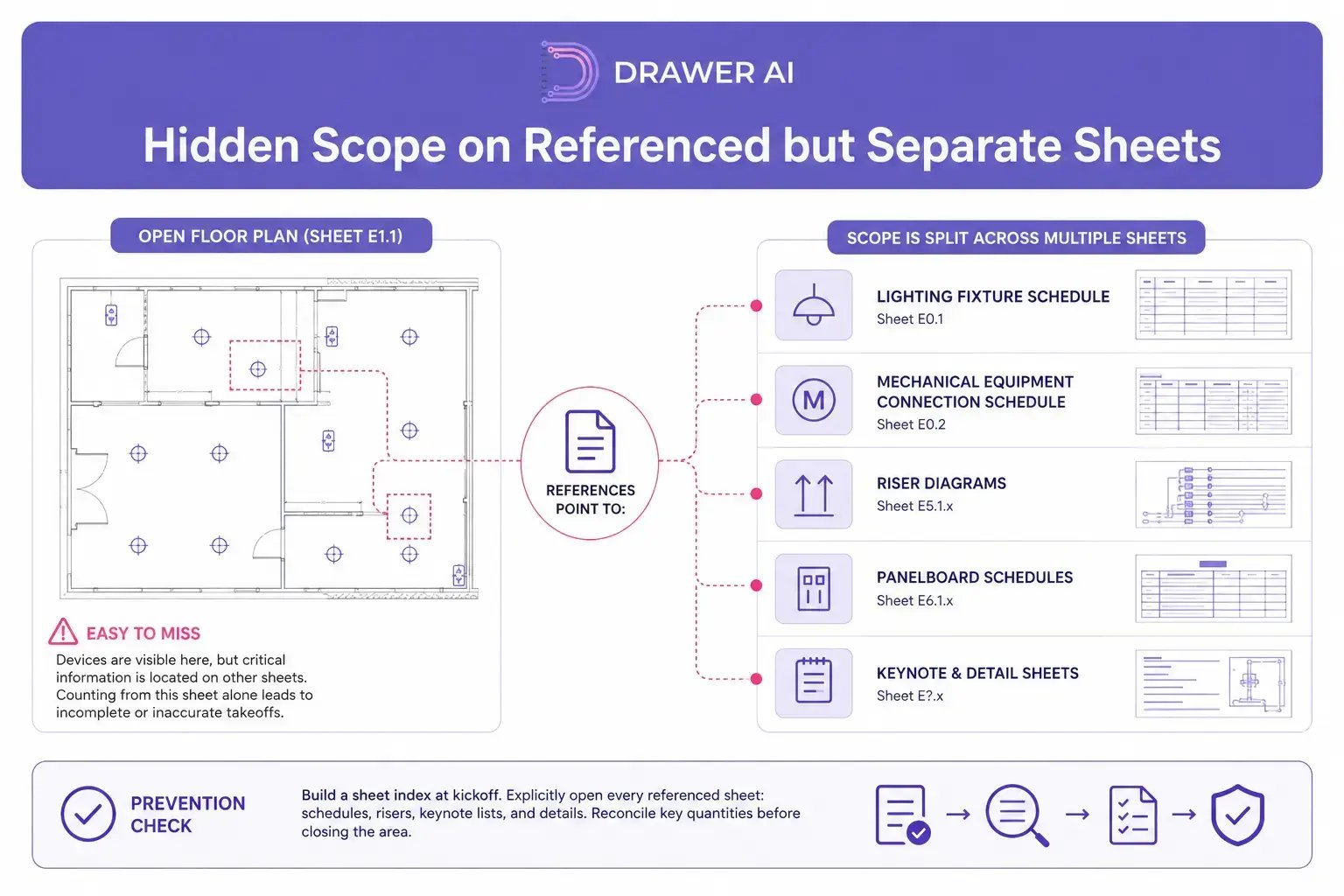
Prevention check: build a sheet index at kickoff. Explicitly open every panel schedule, fixture schedule, riser, keynote list, and detail that the plans reference. Reconcile the key quantities before closing the area.
Visual example of scope distributed across sheets
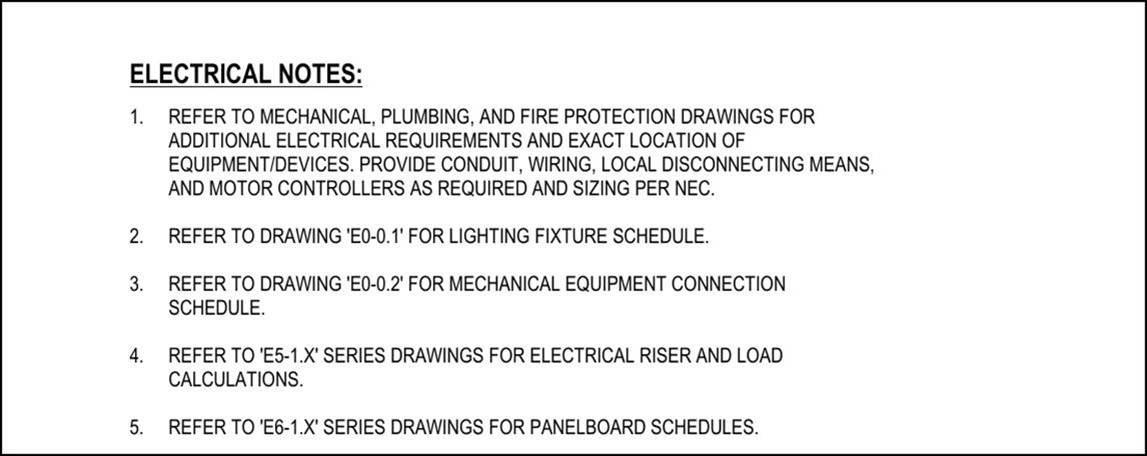
Figure 1. Excerpt from an actual electrical drawing set. The notes show how scope is distributed across multiple references, including mechanical, plumbing, fire protection, the lighting fixture schedule, the mechanical equipment connection schedule, electrical risers, and panelboard schedules.
Do not close a reference until it has been opened and reconciled.
Treat every 'see sheet' note as an open item until it is resolved. A one-line status column in the sheet index is enough: opened, checked, reconciled. That discipline keeps referenced scope from disappearing between pages.
Not every change arrives as clean linework. Revision clouds, handwritten notes, RFI responses, and added marks can sit over a sheet that was already counted. These additions often do not follow the original legend.
Why it happens: markups may be raster overlays or freehand objects. A manual symbol pass can overlook them, and an automated detector may treat them as background rather than scope.
Prevention check: run a dedicated markup pass before closing the takeoff. Look only for clouds, deltas, handwriting, RFI stamps, and revision-block changes. Treat any unexplained markup as possible scope until it is resolved. This cause is controlled by review discipline, not AI.
Keep this pass separate from normal device counting. When the eye is looking only for change marks, clouds and notes are easier to catch. It also creates a clear place to record unanswered RFIs.
Takeoff revision handling becomes risky when a new drawing issue arrives mid-bid. The estimator either rechecks large portions of the set or edits the existing takeoff while trying to remember what moved. Both approaches can mix versions.
Why it happens: a revised PDF is a new file. Unless the tool compares versions, nothing automatically tells the estimator which device moved, which note changed, or which quantity needs to be recounted.
Prevention check: keep a revision log. Compare revision blocks, clouds, and deltas sheet by sheet. Preserve the prior takeoff and recount only changed areas. This cause is handled by process rather than automation, so the log is the control. For the document-side of the problem — finding the current issue of a sheet and the note that changed it — see AI Document Control for Estimators: Managing Revisions.
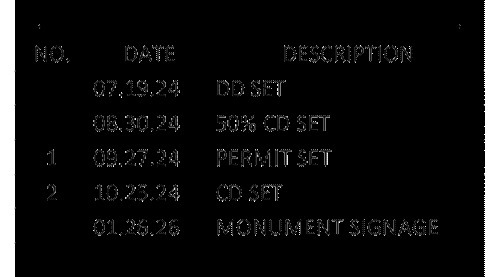
Figure 2. Revision history from an actual electrical drawing set. Before reusing an earlier takeoff, confirm which drawing issue changed and which sheets were affected.
A simple log can be enough: sheet number, issue date, change description, and review status. The value is traceability, not paperwork.
The log should also record who reviewed the change and whether the affected takeoff was updated. That creates a traceable handoff when more than one estimator touches the bid.
Commercial coordination drawings can place electrical devices under mechanical equipment, ductwork, plumbing, architecture, and annotations. The takeoff becomes harder when several disciplines compete for the same visual space.
Why it happens: coordination PDFs are built to show conflicts, not to make a single-trade count easy. Flattened files are especially difficult because the estimator cannot isolate the electrical content.
Prevention check: count from dedicated electrical sheets whenever possible. Use other disciplines for coordination, not as the primary count surface. If layers exist, isolate electrical. If a flattened overlay hides devices or notes, request an electrical-only sheet. Neither manual counting nor AI can fully compensate for unreadable input.
Coordination still matters. Count on the cleanest electrical view first, then bring other disciplines back when location or routing needs confirmation.
Do the clash review after the primary electrical count, not during it. Document it.
Sometimes the count is right and the takeoff is still wrong. A device or equipment load is assigned to the wrong panel, which can affect branch counts, feeder lengths, conductor quantities, and later calculations.
Why it happens: the floor-plan symbol and the panel assignment often live in different places. In one commercial drawing set, the review required identifying building meter centers, utility services, panel names, and connected loads across risers and schedules.
Prevention check: reconcile device groups against the panel schedules after counting. Flag panels whose totals do not make sense, and keep naming consistent across the set. The How to Read Electrical Panel Schedules guide is a useful companion for this check.
This check is especially important when several buildings use similar panel names. Confirm the building, service, panel tag, and circuit before accepting the association. A correct symbol count tied to the wrong distribution path is still a bad takeoff.
Not every PDF is a clean vector file. Older projects, design-build sketches, and generational copies may arrive as low-DPI scans. A thin line can disappear, a tag can become unreadable, and two symbols can merge into the same blur.
Why it happens: a scanned PDF is essentially an image inside a PDF container. Both humans and automated tools lose information when the source image is degraded.
Prevention check: classify the set at kickoff as vector, clean scan, or degraded scan. Reserve extra review time for poor pages. If critical symbols, circuit tags, or notes cannot be read confidently, request a better source file. The limit here is input quality, not counting technique.
Do not confuse zoom with resolution. Enlarging a blurred scan does not restore linework. Mark unreadable tags as unresolved instead of guessing, and keep them visible until a better source is received.
If the source stays unreadable, carry an explicit assumption or clarification into the bid instead of making a silent guess.
The manual takeoff process does not become expensive only when a wrong quantity reaches the estimate. The cost also appears as rework: reopening sheets, reconciling schedules, checking versions, and reconstructing decisions that were already considered complete. That directly reduces estimating workflow efficiency on a tight bid calendar.
The impact shows up in three dimensions. Bid speed suffers because the same team spends more time on each opportunity. Bid quality suffers when a missed device, wrong panel assignment, or bad scale survives into job-cost reconciliation. Estimator retention can suffer when senior estimators spend too much of the week on repetitive click-counting instead of scope review, exceptions, and bid strategy.
One verified data point shows what changes when the counting step is automated. In the Starr Electric case study, 3,284 lighting fixtures and 3,361 receptacles were taken off in 5 hours 29 minutes versus a 22 hour 55 minute manual benchmark. That is a 76.1% takeoff-time saving for those items.
The takeaway is straightforward. Checks can fully address causes 1, 3, 4, 7, 8, and 11. They reduce but do not eliminate 2, 5, 6, and 9, while 10 and 12 remain limited by input.
For a broader checklist on evaluating the estimating stack around these tradeoffs, see What to Look For in Electrical Estimating Tools: The Ultimate FAQ.
Rework also multiplies across people. If a second estimator cannot trace a quantity, QA turns into reconstruction. A documented takeoff lets the reviewer focus on exceptions instead of rebuilding the first estimator's logic.
Automated electrical takeoff changes the workflow most clearly on causes 2, 5, and 6. Those failures are tied to repeated navigation, visual classification, and clicking. Removing part of that attention burden can improve estimating workflow efficiency, but it does not make poor drawings, ambiguous RFIs, or degraded scans disappear.
We built Drawer AI for exactly this part of the problem. It detects power devices and lighting, extracts panel and fixture schedules and links them to the tags on the plan, stitches pages automatically, groups circuits, routes branch conduit with wire sizing, voltage drop, and derating, and exports to Excel and marked-up PDFs. We deliberately do not replace labor-unit databases, assemblies, or supplier pricing. Drawer AI produces the quantities and routing that your estimating suite prices, while bid judgment stays with the estimator.
On revision-heavy bids, the gap is still process rather than product. No takeoff tool removes the need to confirm which issue of a sheet the quantities came from, which is why Cause 9 stays a documented manual control rather than an automated one.
The established estimating platforms now overlap more with takeoff than the old 'legacy versus AI' split suggests. McCormick Systems combines trade-specific digital takeoff with material, labor, assemblies, and proposal workflows. Trimble Accubid is a full estimating platform that pairs with LiveCount graphical takeoff, and Trimble now markets AI-powered automated takeoff in its MEP stack. PlanSwift also combines takeoff and estimating and currently includes AI-assisted measurement features.
The practical distinction is where each platform places automation. AI-native tools shift more device recognition and counting into the takeoff layer. Broader estimating suites carry more of the pricing, assemblies, labor, and proposal workflow. Many contractors will use both layers rather than expect one product to replace the entire estimating stack.
For a broader view of how these categories fit together, see Drawer AI's Electrical Contractor Software: 2026 Tech Stack Guide.
The right stack depends on what the contractor already uses downstream.
If the goal is how to reduce takeoff errors, the answer is not to recount the entire set at the end. A short, repeatable QA routine is more useful. It should target the places where the 12 causes are most likely to surface.
Step 1 - Schedule reconciliation. Compare plan counts against fixture and panel schedules. A mismatch means something needs investigation; do not pick the more convenient number.
Step 2 - Outlier check. Review totals by sheet. A surprisingly low count can point to a missed area, a layer-isolation problem, or a reference that was never opened.
Step 3 - Peer second-eye. Have a second estimator review one sheet out of every five on large sets. Focus on classifications, annotations, match lines, and anything that looks out of pattern.
Step 4 - Confidence review. If the selected AI tool exposes confidence or review flags, check those items first. If it does not, sample the densest sheets and the most similar symbol types.
Step 5 - Bid-day red-line. Review assumptions, exclusions, revisions, and unresolved interpretation points before submission. Many takeoff errors become obvious when the estimator has to explain the scope in writing.
For teams formalizing this last review, the Bid Confidence Scoring article provides another framework for making bid risk visible before submission.
Two companion pieces go deeper on the verification step itself: How to Verify Electrical Takeoff Accuracy Before You Bid covers the pre-bid review, and 11 Accuracy Checks for Automated Electrical Takeoff covers the checks that apply once detection is automated.
Keep the five checks visible in the bid file. A completed checklist gives the next reviewer a fast status view. The goal is consistency, not more paperwork.
Keep the completed QA record with the bid so the next reviewer can see what was checked.
PDF electrical takeoff errors usually start small. One reference is skipped, one sheet keeps the wrong scale, one symbol looks familiar, or one revision is mixed with the prior issue. The reliable estimators are not the ones who muscle through the most clicks. They treat takeoff as a process that can be checked.
The 12 causes in this guide do not share one solution. Some yield to discipline, some need better input, and some need a workflow change. If you want to test how AI electrical takeoff handles the structural causes on your own drawings, review Drawer AI pricing or book a demo. The point is not to remove estimator judgment. It is to spend that judgment where it creates the most value.
The most common causes are devices double-counted at match lines, similar symbols misclassified (for example 277V versus 120V), click-counting fatigue on high-density sheets, scope hidden on referenced schedules, revision drift between sheet versions, and low-quality scanned PDFs. Automated takeoff removes the structural counting errors; drawing-quality causes still require better source files.
Manual takeoff is click by click: an estimator counts every device across every sheet, re-counts across match lines, and restarts large portions whenever a drawing revision lands. On a commercial set with thousands of devices this takes days, and it is the single largest bottleneck in the bid cycle.
AI takeoff tools detect and count devices directly from the PDF, extract schedules, and route branch circuits, so the estimator reviews flagged items instead of clicking every symbol. In the Starr Electric case, Drawer AI cut takeoff time on a 2,600+ fixture commercial job by about 70%.

14425 Falcon Head Blvd
Building E, Suite 100,
Austin, TX 78738
Created by Estimators, Powered by AI and Innovation
Copyright © 2026 Drawer AI. All rights reserved.